How to do it
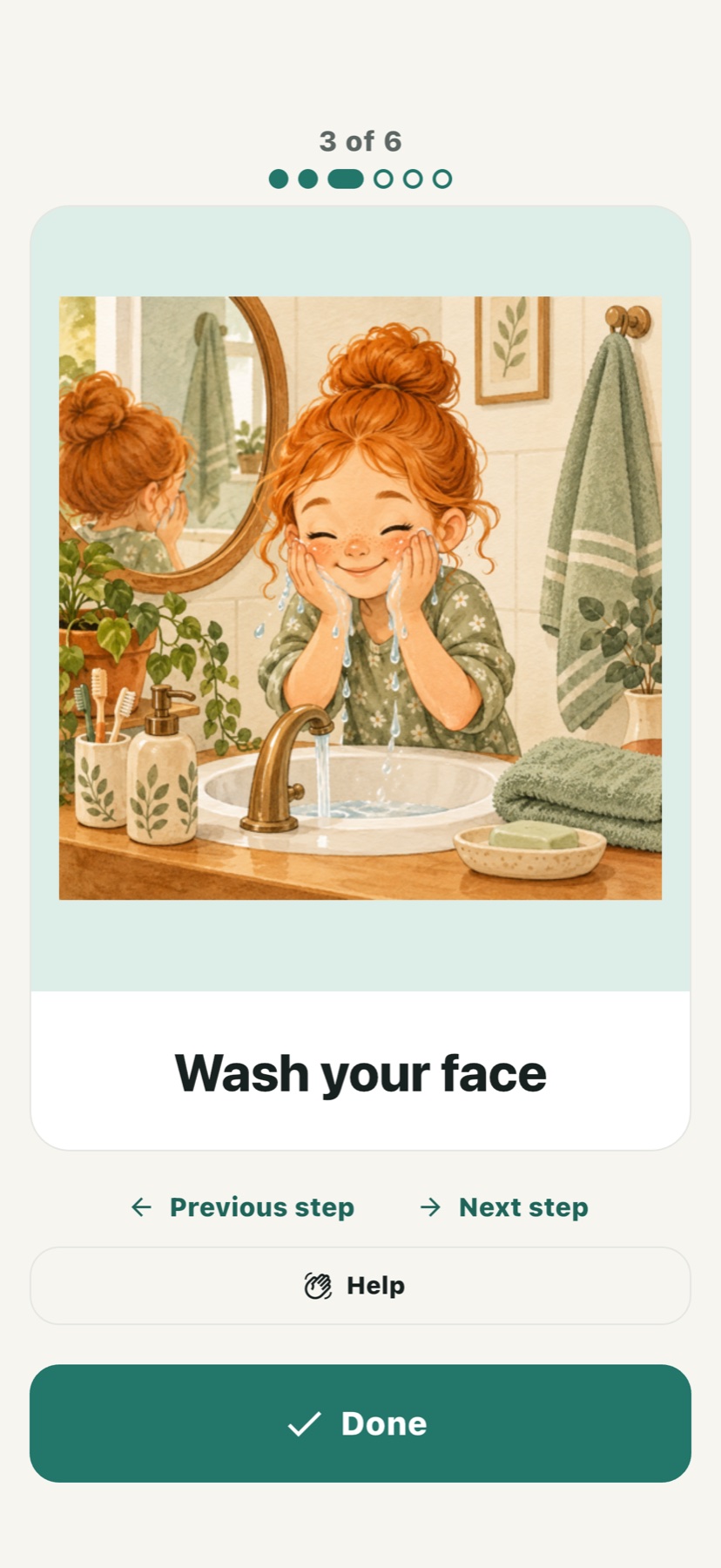
- Open the routine and read or listen to the current picture card.
- Use Previous or Next to browse; these buttons do not mark a step completed.
- When browsing is enabled, swipe between cards. A caregiver can restrict future-step browsing, while earlier steps remain reviewable.
- Tap Done when ready. The app moves to the next unfinished step rather than requiring another Next tap.
- Return to a completed card to undo its completion if it was tapped by mistake. After the last step, use Review steps from the completion screen.
- Use Help for an in-app caregiver request. If a helper number has been enabled, use the separate Call helper button for an ordinary telephone call.
Make it easier to use
Set a helper phone number in the planning phone's Settings, or customise or disable calls for a particular person. The app can open the device's telephone service; it does not provide its own calling network. iOS asks for system confirmation, and some tablets cannot make ordinary calls.
Help requests and progress synchronise when internet access is available. They should not be treated as a guaranteed alarm, emergency response or proof that a real-world task was done. The caregiver should explain which contact route to use when prompt assistance is necessary.